
|
|
Course Notes - Some other features of note
Buddy Icon Now, the 'Buddy Icon' tab. This isn't really needed, but it is cool. You can select your own icon that will be shown in the IM windows of all the people you chat with. It allows you to personalize AIM just a bit to suit your own personality. Just click 'My Buddy Icon' to set your own. AIM comes with tons of icons, or you can find literally millions on the web to suit your own taste. Away Status The 'Away' tab is one of the best features. From here you can set custom Away messages to display to others who message you when you're away. To create one, just click 'Add Message' and enter a name for it and text. To set yourself as Away, click on 'My AIM' then 'Away'. If you have more than one Away message, a list will display for you to choose. Select one, and you're away. While away AIM will log your messages for you when you return. To return, just click 'I'm Back'. In the box you will see your messages, double click them to read. Sounds If you go into the preferences menu and select the sounds tab, you can change the sounds you hear when buddies come online, go offline, and send/recieve message sounds. These can be changed to almost any WAV compatible file. Multi-User Buddy Chat To start a Multi-User Buddy chat is really pretty easy. The buddy chat is sorta like an IRC room, only it's more of an invitation only sorta deal. First thing you'll want to do is click on People. From there click the option for Send Buddy Chat Invitation. From there just add the buddies screen names and the room name and send it. If your buddies are free to chat they'll join your room and interact. There are no real channel operators and such in this buddy chat room, so you can't really moderate it like an IRC room Next >> |
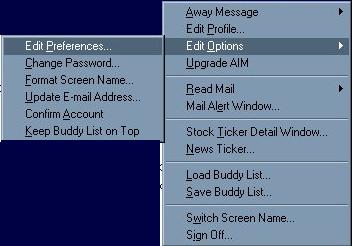 While in
Preferences you can change a great many things. The most useful are 'General',
'Buddy Icon', and 'Away'. Click the 'General' tab, and you can set your chat
font, it's color, size, and formatting. Also, you can choose options to save
your password or not. If you are the only one who uses the PC, save password
is nice. But, if you have others, you might want to leave that box empty so
they can't log into your account.
While in
Preferences you can change a great many things. The most useful are 'General',
'Buddy Icon', and 'Away'. Click the 'General' tab, and you can set your chat
font, it's color, size, and formatting. Also, you can choose options to save
your password or not. If you are the only one who uses the PC, save password
is nice. But, if you have others, you might want to leave that box empty so
they can't log into your account.