This section describes how to start a game as a host or as a joiner. Please note that if you are using the Errant Venture client, the connection aspect of the game is done automatically, so you should only be required to follow the instructions from the point where the players are connected.
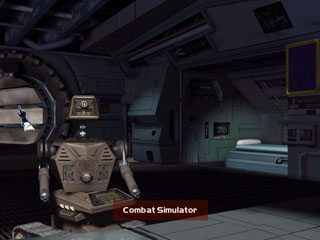
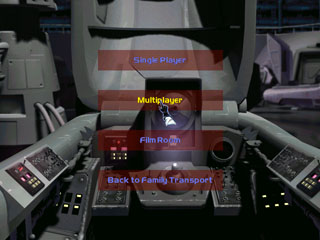
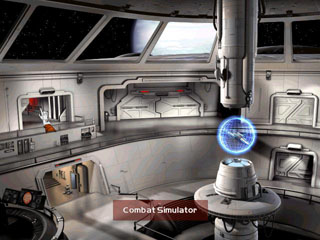
If you are playing XWA, start the game, enter the Combat Simulator, and select Multiplayer. The exact locations of these options depend on whether you have moved up to the cruiser concourse, or are still in your family transport. The following screens show how to reach the multiplayer area in both cases.
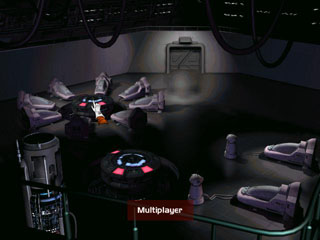
You will now be presented with the option to host or join the game. Choose the appropriate one.
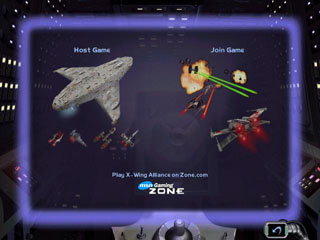
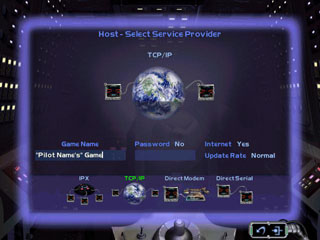
If you are the host, select TCP/IP from the options at the bottom, ensure “Internet” is “Yes”, and “Host/Update Rate” is “Normal”. Then proceed on to the next screen and wait for players to join.
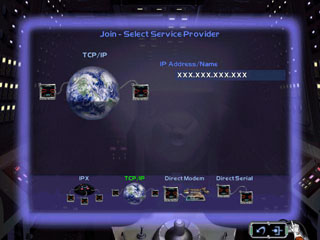
If you are joining, select TCP/IP from the options at the bottom, and enter the IP of the host. Proceed, and the game will attempt to connect to the host.
Next is the skirmish setup screen. The host sets up the game and drags players into their appropriate flight groups.
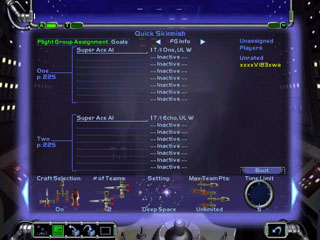
To set up a traditional 1v1 or 2v2 game, the host first creates a skirmish type game (not a combat engagement). Then, the host creates flight groups on each team, selecting the appropriate craft and armament. The only important thing to remember with this is to give each flight group “Super Ace AI”, as this affects the number of points given for each kill, which is in turn important for some competitions (like Week of War).
There are also several options at the bottom, which you can scroll through with the arrows at left and right. Particularly important is the time limit, which should be 5 minutes for 5/5 1v1 games, and 10 minutes for anything else (see the Rules section for information on 5/5 play). Also ensure that collision damage is on and the start distance is 3 km.
When all players have clicked “Ready”, the game begins!
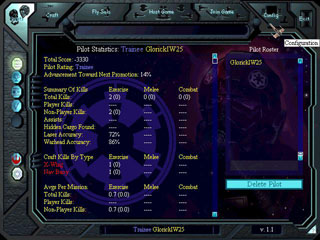
If you are playing XvT or BoP, the first step is to start the game and select your pilot file, shown on the screen below.
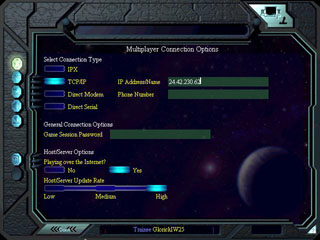
Next, check your multiplayer connection settings by clicking on the Config tab. Ensure that the connection type is “TCP/IP”, “Playing over the Internet” is set to “Yes”, and the “Host/Server Update Rate” is set to “High”. Finally, if you are joining the game, enter the host’s IP address into the “IP Address/Name” box. To exit, click “Done” at bottom. These options are shown below.
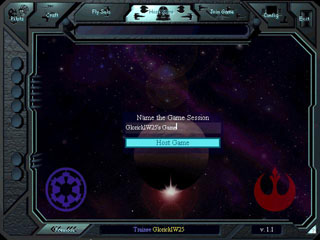
The next step depends on whether you are hosting or joining. If you are hosting, select the “Host a Game” option at the top. This will give you the following screen, where you give the game a name. The name doesn’t really matter; it is just displayed at the top of the screen when the game is created, so call it whatever you want (subject to the EH Code of Conduct, of course) and continue.
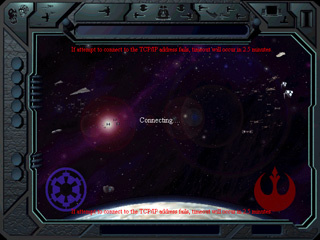
If you are joining a game, then choose the “Join a Game” option at the top. The game will then attempt to connect to the host, displaying the following screen. If all goes well, you will be connected to the host within 30 seconds ±.
The next screen is the mission selection screen. This also lists the players connected to the game, and has a chat box to chat with them. At this point, the host selects the mission to play. For 1v1 play the most common is Basic Furball, under the Melee category. For 2v2 play, it is Furball for Two-Man Teams. There are also 4v4 games and so on (very unusual though) and in order to play those and FFAs (1v1v1) you'll need a patch located at http://majesticsites.net/patch/xvtmelee.zip or HERE at Cyclone Squadron website. Then, if you want to play an FFA you must select a special scenario named FFA for Three Players, located under "Custom Melees" (it was especifically designed to balance the starting positions for competitive play). For the rest of curious setups (4v4, 5v5...) you must use 10 Melees in One, also under "Custom Melees". Other missions like combat engagements are only used if the competition specifically specifies them.
The host also has the duty of setting up the options for the game. The mission time limit should be 10 minutes unless the game is a 5/5 1v1 (see the Rules section for details on 5/5 play), in which case it should be 5 minutes. The difficulty must be “Hard”, as this affects the points given for each kill. Randomize must be off. Craft selection should be set to “Host Only” if all players will use the same craft, otherwise it should be “On”. The other options can be left at their default values.
If you have joined the game, you can still view the options to make sure that the host has set them correctly, and point out any problems.
The next screen is shown if the game is a team game (like a 2v2), and allows the host to choose the teams. If you are the host, drag the players so that they are on the proper teams. Joiners can relax and let the host pull them around.
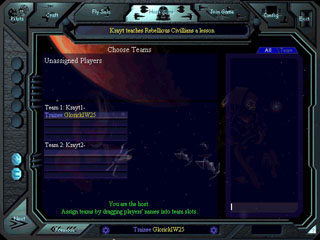
In team games, the next screen allows the team leader (person at the top of the team list) to assign flight groups. For melee missions, this doesn’t matter, so just proceed to the next screen if you are the team leader.
This brings you to the last screen before the actual game, namely the craft selection screen. If the host has set craft selection to “Host Only”, then the host selects the craft for everyone. Otherwise, everyone has access to craft selection, so select the craft agreed upon with your opponents. Note that in normal play, warheads, beam weapons, or countermeasures are not used, so don’t pick these unless you’ve agreed upon them.
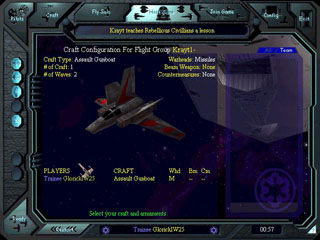
If craft selection is “Host Only”, the host launches the game. Otherwise, the game launches when all players click “Ready”.
Let the game begin!
If all goes well, it is relatively simple to get a game going. However, sometimes it seems like XvT and XWA just won’t connect. Here are some tips if you are stuck.
If you are trying to join a game, first check the host’s IP address. You can do this even if you are connecting with Errant Venture, by scrolling over the player’s name. If the IP address is correct, it could just be that you started connecting before the host’s game was ready. If this is the case, attempting to connect again should meet with success. If you still can’t connect, find out if other people can connect to the host, because it might just be the host’s problem.
If you are the host and nobody can connect to you, then the problem is definitely with your connection. This is a much more common problem now than it used to be, because of the popularity of home routers with built-in firewall and Network Address Translation (NAT).
If you haven’t heard of it before, NAT is a technique of sharing one IP address between multiple computers. The router sets up a private network for the internal computers to use, with a connection out to the internet, and serves as a bridge between the two networks. This works well for normal activities such as internet browsing. When a computer sends a request to a web server, the router knows which computer on the private network sent the request, so it knows where to send the reply when it returns. But there is a problem when someone on the internet tries to initiate a connection to a computer on the private network. How does the router know which computer to send the request to?
This is the problem with a host of an XvT or XWA game. Your computer waits for other players to make a connection, but the connection packets are all blocked by the router, so the connection is never made. This is good security against worm attacks, but bad for gaming!
To find out if you are behind a NAT router, check your computer’s IP address. In Windows 2000 and XP, you can find this out by opening a command prompt (Start->Run->cmd) and entering the command ipconfig. In earlier versions of Windows, run winipcfg instead. If your IP address is of the form 10.xxx.xxx.xxx or 192.168.xxx.xxx, where xxx can be any number, you are behind a NAT router.
So, what can you do to fix the problem? Luckily, most routers allow you to define a specific computer inside the private network that should receive data packets that would otherwise be blocked. This can be done on the port level or for all traffic.
The safest way to do it is by opening up only the ports used by the game, as the router will still block unwanted traffic on other ports. And these are the ports you'll need to open:
Open these ports for both TCP and UDP protocols, and both inbound and outbound. This should cover all ports used by DirectPlay and EV for all versions. Check your router manual for information on Port Forwarding to find out how to do this.
If you try this without success, you can attempt to direct all unknown traffic from the router to your computer. Check your router manual for information about how to do this. Look for information on DMZ or Default Server, but there may be other names for this function.
The DMZ mode or Default Server should be your last resort. It will leave your computer in a completely exposed state, with no protection against hackers, spyware, trojans, NOTHING. Avoid at all costs unless there's no alternative and even then set it only while you're gaming and change your config back to something secure later. To set it up you'll need to provide the IP address of at least one DNS server, which your ISP can provide. Both your own IP and that of a DNS server can be found using the ipconfig/winipcfg command in a CMD window as it's explained above. Check your router manual for further information.