Once the software requirements are met, the next step is to find other players to play against.
Internet Relay Chat (IRC) is heavily used by the Emperor’s Hammer, so it is also a good place to find opponents for multiplayer gaming. However, IRC doesn’t provide any help in getting a game started, so it involves a bit of extra work.
The first thing to determine is who is going to host the game. All XvT and XWA games have a single host, with all of the other participants connecting to that host. In games with more than two players, it is important to have someone host that has a good Internet connection, since they will have more network traffic than any of the joiners.
Once it is determined who the host will be, all of the joining players need to know the host’s IP address. IRC has a built-in function for looking up an IP address, called /dns. So the joiners can all say “/dns [host’s nickname]”, which will return the host’s IP address on the status screen. Well, actually the fact is that this fails when a player's IP is hidden/masked on IRC for whatever reason; in this case you should directly ask the player for the IP and he will surely give it to you in private at least. To know YOUR IP you can use the command "ipconfig" ("winipcfg" on earlier Windows versions) on a Windows command prompt.
At this point, it is time to start the game. The exact procedure from here depends on two things: whether you are playing XvT or XWA, and whether or not you are the game’s host. Refer to the next section, “Starting the Game”, for details on how to use the IP address to get the game started.
When X-Wing vs. TIE Fighter and X-Wing Alliance were first released, multiplayer matchmaking was most popular on Microsoft’s Internet Gaming Zone (later the MSN Gaming Zone, but more commonly referred to as “The Zone”). This was a free application that provided a “lobby” where players could chat, and a number of game rooms where games could be set up and launched. Unfortunately, the Zone no longer supports XvT and XWA, as the popularity of the games has progressively decreased over the years.
As a result of the Zone’s closure, the XvT and XWA community has come up with a client to replace it. This is known as the NRSD Errant Venture, or EV for short, and was developed by Stresser, a member of The Rebel Alliance (TRA) online gaming club. It is not a commercial product, so don’t expect it to function without the occasional hiccup. It does however provide all of the important features that the Zone did, so it’s important to know how to use it.
To get started, download the client. As of this writing, the URL to the latest version of the client is http://ccanuk.brinkster.net/xvt/redist.zip. The latest COO report should always have information on new versions and where to find them. But just in case here you are an alternate link that points to Cyclone Squadron website: http://cyclone.isdchallenge.org/NRSD_EV.zip Feel free to use it if needed.
The client doesn’t require installation, so just unzip it to an appropriate folder. The program itself is called “sample.exe”. There is another, nearly identical program called “sample-noresize.exe” that can be used if you experience crashes with the main program. As expected from the name, it disables window resizing, which has caused problems for some people.
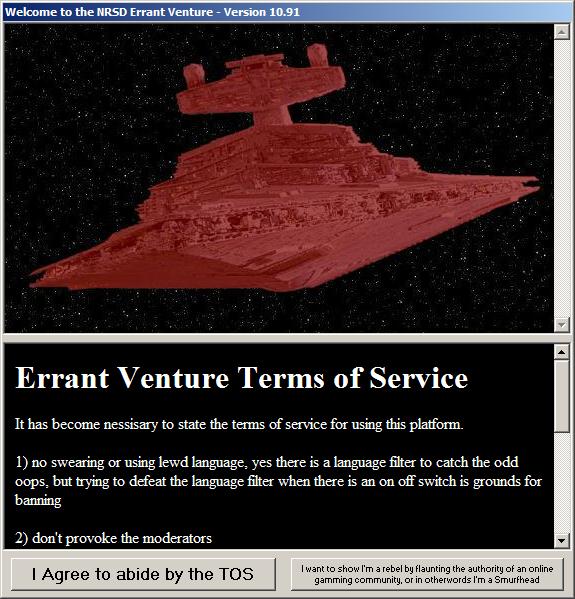
When the program is started, it first displays the Terms of Service, in a window resembling the one below. Read through the terms and click on “I Agree…” to continue.
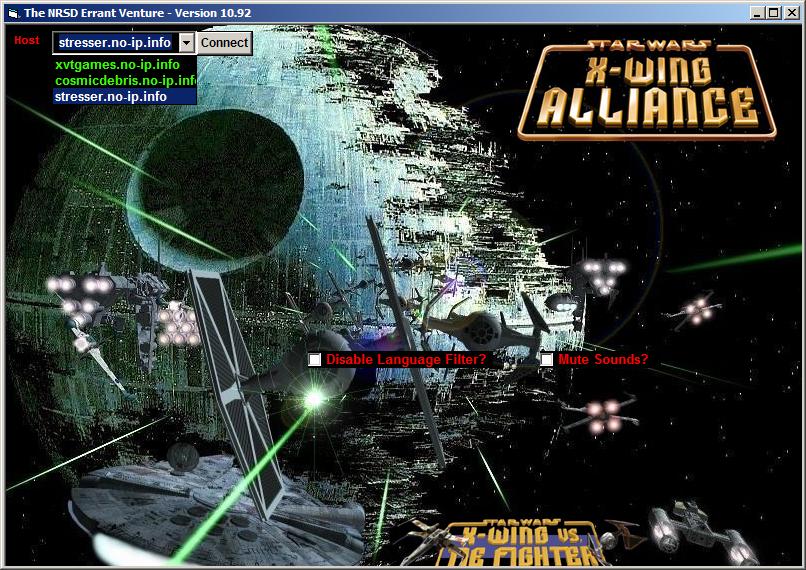
The next window is the connect / login window. Initially, it will resemble the window below. Connect to the appropriate server to continue. As of this writing, the server used is “stresser.no-ip.info”, but sometimes "xvtgames.no-ip.info" is used instead when there're problems with the previous one. If the server name has changed, this will be announced in a COO report.
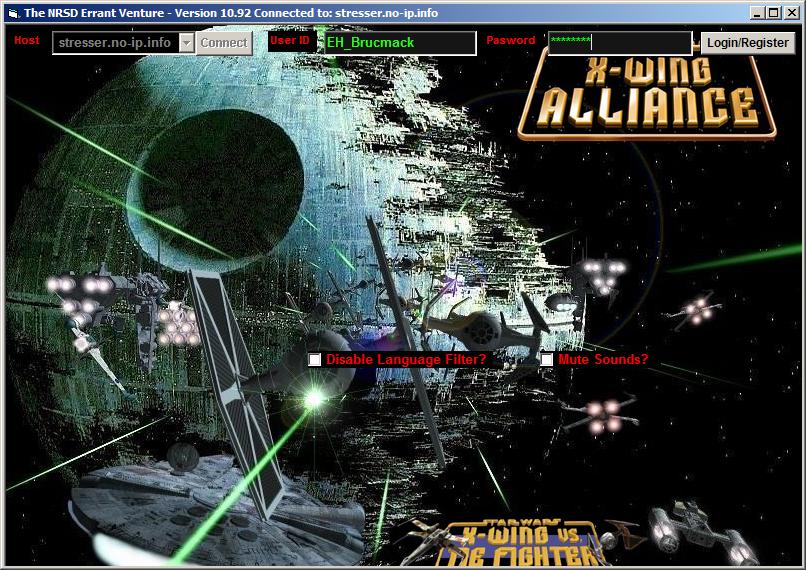
After connecting, the login and password boxes become available, as shown below. If you have previously registered, enter your login information and proceed. Otherwise, just click the button and answer “OK” to the prompt, which takes you to the registration screen.
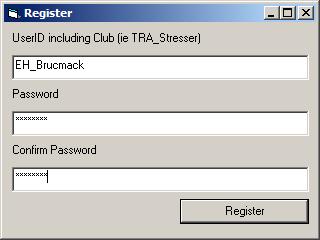
The registration screen allows you to choose an username and password. The username should start with EH_ for all EH pilots, then whatever name you want to go by (it's better to use your EH name). After you complete your registration, you will be returned to the login screen, where you can log in.
After you have logged in once, EV will remember your username and password, so it will be easier to log in.
After logging in, the main lobby is displayed, as shown below. It is split up into three areas. At the upper left is a list of all players logged into the system. At the top right is a list of game rooms that are open or in progress. At the bottom is the chat area.
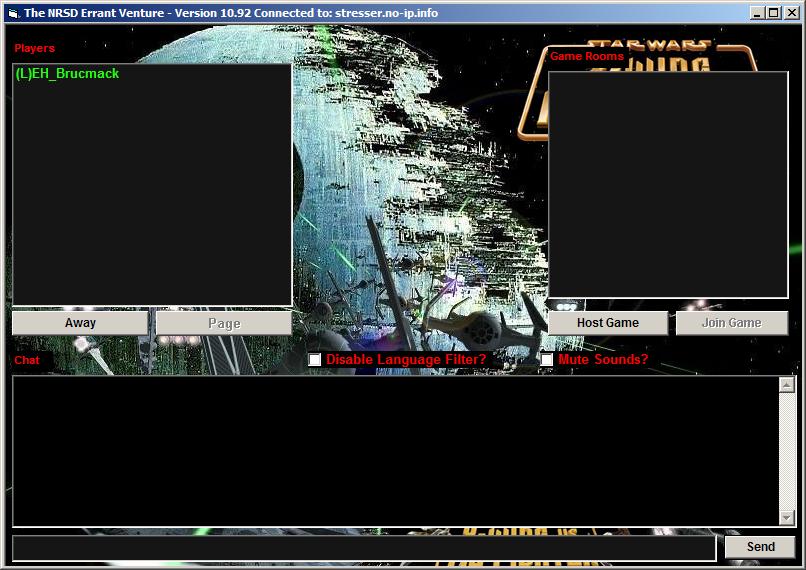
The player list provides some extra information about the players logged in. Firstly, the letter to the left of their name indicates their status. L stands for Lurking, H stands for Hosting (host of a game room), G stands for Guest (guest in a game room), A stands for Away, and P stands for Playing. Secondly, hovering over a players name will display their IP. You can send a private message to a player by double clicking their name in the list, or selecting their name and pressing the “Page” button. To toggle your away status, click the “Away” or “Back” buttons (the button label changes depending on your status).
The game rooms list contains all of the game rooms currently available. The list displays how many players are in the game room, the maximum number of players allowed in the room, the game being played (XvT, BoP or XWA), and the title of the game room. If you hover over a game room, it will list the players in the game. To create a new game room, click the “Host Game” button and fill in the game information. To join an existing game room, select the game and click on the “Join Game” button.
Finally, the chat area is fairly self-explanatory. The text you write there will be visible to all of the other players logged into the client.
Once in a game room, it is just a matter of waiting for all the players to join and be ready to start. There is a private chat room, so you can discuss the game details, like teams and craft selection, with the other participants. When everyone is ready, EV will launch the game, with the right settings to connect the players to each other. The host will automatically start hosting an internet game, and the guests will automatically join the host. Remember that when the game launches, it will use the last pilot file you played with, so make sure you switch to a pilot file with your EH name before you start a game!
Those are the basics of using Errant Venture. If you get stuck, you can also try reading the readme.txt file included with EV, or just ask someone who uses the program.